ElectionChamp
Introduction
Your voter list is the backbone of your election. If a voter’s email is misspelled, they won’t receive their voting link. If someone is missing from the list, they can’t vote. If someone is on the list who shouldn’t be, your election’s legitimacy is at risk.
Getting the voter list right isn’t glamorous work, but it’s the single biggest factor in whether your election runs smoothly or becomes a logistical headache. This guide covers everything from preparing your data to handling issues during a live election.
Preparing Your Voter List
Before uploading anything, your voter list needs to be clean and properly formatted.
Required Fields
What columns you need depends on how voters get their key, which you choose on the Start step:
- Email: Each voter needs an email address. A Label column (on by default) holds a name you’ll recognize on the Voters tab.
- Text message: Each voter needs a phone number that starts with the country code. With both email and text on, each voter needs one or the other.
- Hand out keys: You only need a name or ID for each voter, and no contact details: you’ll give out the keys yourself. With no Label, Ballot ID or Weight column, you just enter how many keys you need.
Data Cleaning Checklist
- Remove duplicate entries (same person listed twice)
- Verify email formats (look for missing @ signs, typos like “gmail.con”)
- Standardize phone number formats if using SMS
- Remove any voters who are no longer eligible
- Ensure names are spelled correctly (these may appear in the voter label field)
- Check for blank rows or columns in your spreadsheet
Importing Your Voter List
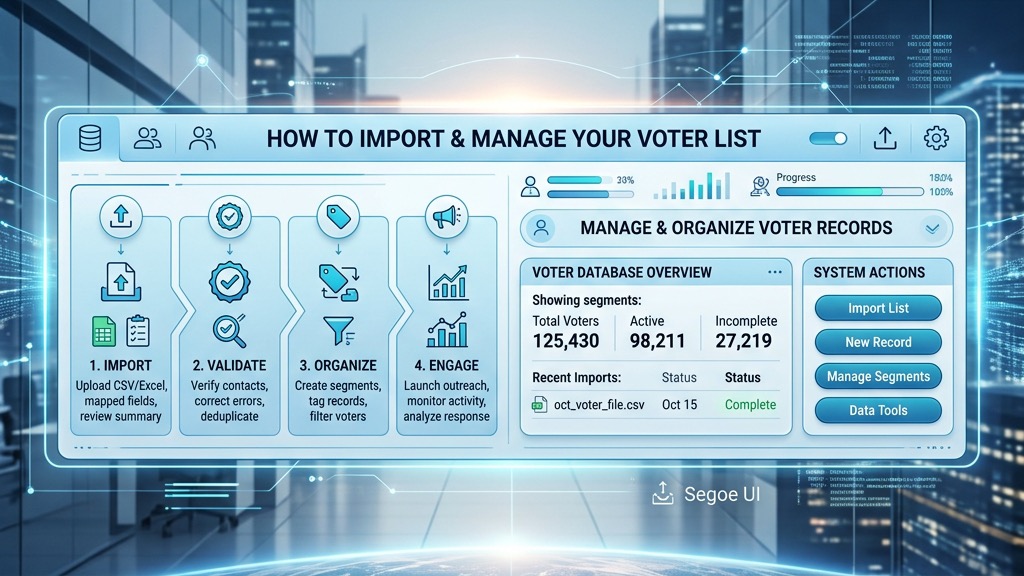
Paste or upload: On the Voters step, copy your rows from Excel or Google Sheets, heading row included, click a cell and paste. Columns are matched by their headings. Or choose “Upload CSV”: Excel files need saving as CSV first. The “Match your columns” dialog shows each column in your file with its first values, so you can check where each one goes before you import. Every row is checked as it goes into the list. “Download a CSV template” gives you a file with this election’s headings.
Manual Entry: For elections with fewer than 20–30 voters, you can enter voters directly into the interactive grid. Click on a cell and type. This is often faster than preparing a spreadsheet for very small elections.
Spare Keys: Your Safety Net
Set 5 to 10 spare keys on the Voters step (“For members you add after launch”). They are blank voter slots that serve as your safety net. Your dashboard’s Voters tab shows how many you have used, under Spare keys.
Why they matter:
- A new member joins after the election is launched
- You discover a missing voter who was accidentally left off the list
- Someone’s key is compromised and you need to issue a replacement
Spare keys count toward the price, and the “Price so far” meter on the Voters step shows the total as you set them. The small cost is worth the flexibility. You cannot add voters to a live election without spare keys set before launch.
Managing Your Voter List During a Live Election
Once the election is launched, the list is locked except for your spare keys (this preserves election integrity). But you can:
- Resend Notifications: Go to the Voters tab, find the voter, and click Resend. This sends the same key again — it does NOT create a new key.
- Check Delivery Status: The Election Status panel shows real-time email delivery status (Pending → Sending → Sent). You can also check individual voter statuses in the Voters tab.
- Identify Issues: If a voter reports they haven’t received their email, check if it bounced. Common causes: misspelled email address, full mailbox, corporate email filters blocking the domain.
Troubleshooting Common Voter List Issues
“My voter didn’t receive their email”
- Check their Spam/Junk folder — this is the #1 cause.
- Verify the email address is spelled correctly in the voter list.
- Ask if their IT department has blocked the ElectionChamp domain.
- Resend the notification from the Voters tab on your dashboard.
“I need to add a voter after the election launched”
Use one of your spare keys. On the dashboard’s Voters tab, click + beside Spare keys, then “Add voter”. The new key appears in the voter list for you to give to the new voter: it isn’t emailed or texted.
“A voter accidentally shared their key”
If the key hasn’t been used yet, there’s no security risk — only the person with the key can vote. If the key has been used by the wrong person, contact support to discuss options.
Planning your next vote? Read about how online elections work and the full feature list, or see pricing: free up to 20 voters, $10 up to 200, then $0.05 per voter.