ElectionChamp
Access Is a Right, Not a Feature
If an election is supposed to represent the will of the membership, every member must be able to participate. Accessibility isn’t an optional enhancement — it’s a fundamental requirement of democratic governance. When online voting platforms are inaccessible to members with disabilities, low digital literacy, or limited technology access, those members are effectively disenfranchised.
This guide covers how to ensure your online elections are accessible to all members, regardless of ability, technology, or experience level.
Dimensions of Accessibility
|
Dimension |
Who It Affects |
Key Considerations |
|
Visual accessibility |
Blind and low-vision members |
Screen reader compatibility, high contrast, text sizing |
|
Motor accessibility |
Members with limited mobility |
Keyboard navigation, large click targets, no time pressure |
|
Cognitive accessibility |
Members with cognitive disabilities |
Clear language, simple layouts, progress indicators |
|
Language accessibility |
Non-native speakers, multilingual members |
Translated materials, simple English, visual cues |
|
Technology accessibility |
Members with older devices or limited internet |
Lightweight pages, low-bandwidth design, offline options |
|
Digital literacy |
Members unfamiliar with online tools |
Clear instructions, minimal steps, support resources |
Screen Reader Compatibility
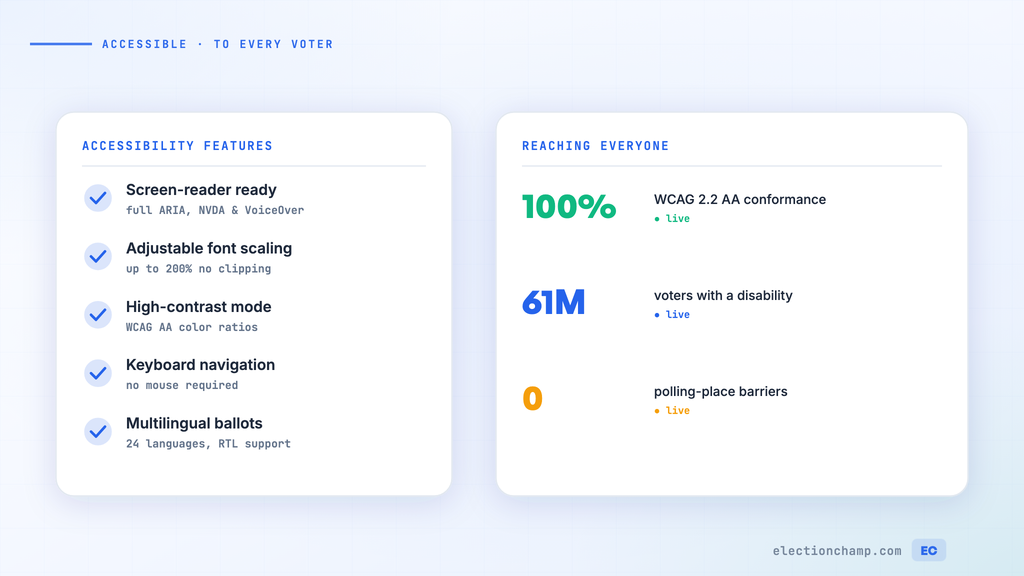
- Online voting platforms should use proper HTML structure (headings, labels, alt text) so screen readers can navigate the ballot correctly
- Form elements (radio buttons, checkboxes) must have associated labels that screen readers can announce
- Error messages must be accessible — not just visual indicators (red text) but also text that screen readers can communicate
Low Vision
- Text should be large enough to read without magnification (minimum 16px base font)
- Color contrast must meet WCAG 2.1 AA standards (4.5:1 ratio for normal text)
- Content should work when zoomed to 200% without breaking the layout
- Don’t rely solely on color to convey information — use text labels and patterns as well
Motor Accessibility
- The entire ballot must be navigable and submittable using only a keyboard (Tab, Enter, Space)
- Click targets (buttons, radio buttons, checkboxes) should be large enough for members with limited fine motor control
- No timed interactions — don’t require members to click within a time limit
- ElectionChamp’s voting windows span days, not minutes, eliminating time pressure entirely
Cognitive Accessibility
- Use plain language: “Pick the person you want to be president” is better than “Select your preferred candidate for the office of the presidency”
- Keep ballot layouts clean and uncluttered — one question per screen section
- Provide clear progress indicators: “Question 2 of 5” so members know where they are in the process
- Include a review step before submission so members can verify their choices
- Avoid jargon: not everyone knows what “plurality” or “abstain” means — explain these terms in the voter instructions
Language Accessibility
- Provide ballot materials in all languages spoken by your membership
- Use clear, simple English (or your organization’s primary language) as the default — avoid complex sentence structures
- Include visual cues (icons, candidate photos) that transcend language barriers
- Have translations reviewed by native speakers, not just machine translation
Technology and Digital Literacy
Not every member is comfortable with technology. Design for the least tech-savvy user:
- Minimize steps: Click link → Enter key → Select candidate → Confirm → Done. Five steps maximum.
- No downloads: Everything works in a standard web browser — no app, no software, no plugins
- Provide clear, written instructions: “Step 1: Click the blue link in your email. Step 2: You’ll see the ballot. Step 3: Click on the person you want to vote for.”
- Offer phone support: ElectionChamp provides free support to voters who need technical assistance
- Provide printed keys for members who truly cannot use digital tools — print and mail them physical keys they can use at a location with assistance
Legal Requirements
|
Law/Standard |
Scope |
Key Requirement |
|
ADA Title III |
Private organizations open to the public |
Accessible goods, services, and communications |
|
Section 508 |
Federal agencies and their contractors |
Web content must meet WCAG 2.0 Level AA |
|
WCAG 2.1 |
International web accessibility standard |
Perceivable, operable, understandable, robust |
|
AODA |
Ontario, Canada organizations |
Accessible web content for organizations above 50 employees |
|
EAA |
European Union |
Accessible products and services by June 2025 |
Accessibility Checklist for Election Administrators
- Review your ballot for plain language — can a 10th-grader understand every question and instruction?
- Test the ballot on mobile devices — most accessibility issues appear on small screens first.
- Provide translated materials for your multilingual membership.
- Offer multiple voting channels: online (email + SMS) plus printed keys for offline access.
- Include a help contact in your voter notifications: “Need help voting? Call [number] or email support@electionchamp.com”
- After the election, ask for accessibility feedback: “Did you experience any difficulty voting? Let us know how we can improve.”
Planning your next vote? Read about voting from any device and multi-language ballots, or see pricing: free up to 20 voters, $10 up to 200, then $0.05 per voter.