ElectionChamp
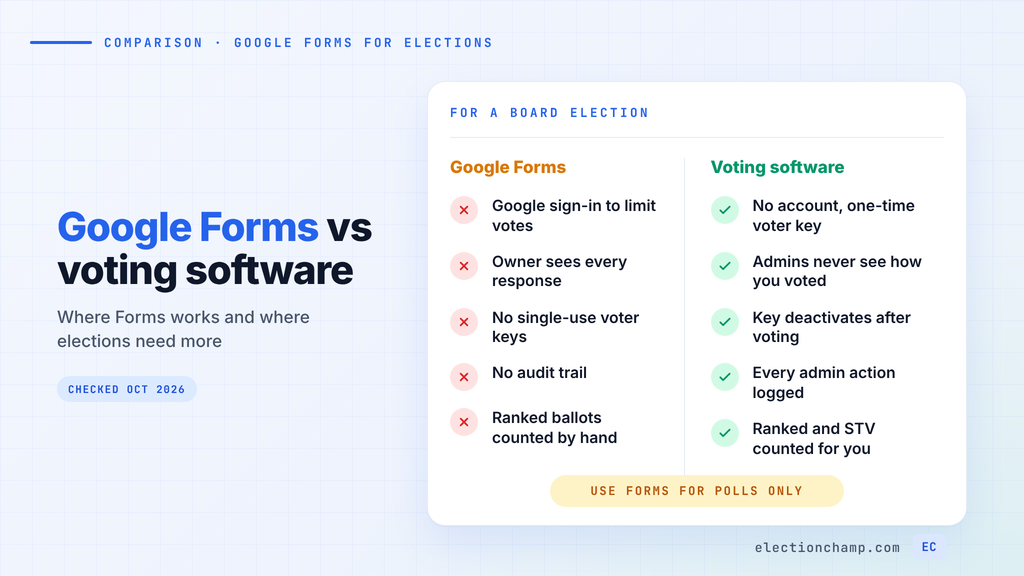
Short answer: Google Forms works for informal polls where names don’t matter and nobody will challenge the result. For a real election, it falls short. Stopping repeat votes requires every voter to sign in with a Google Account. The form owner sees every individual response. There are no single-use voter keys and no audit trail, and ranked ballots must be counted by hand. Use voting software when a secret ballot or your bylaws are involved.
Plenty of boards, clubs, and parent groups consider Google Forms for elections because it is free and already open in a browser tab. This guide shows what Forms does well, where it breaks down for elections, and how to decide. Every Google Forms behavior below is checked against Google’s own help pages (October 2026). We run ElectionChamp, a voting platform, so we say where Forms is the right call too.
Can You Use Google Forms for Voting?
Yes. Google Forms is a capable tool for quick polls, and it costs nothing with a Google Account. You can build a ballot in a few minutes, share a link, and watch charts fill in on the Summary tab.
It also has a few features that help with simple votes:
- Multi-seat ballots. Checkbox questions support “Select at most” and “Select exactly” rules, so you can cap choices at the number of open seats (Google: set rules for your form).
- Closing the vote. You can turn off “Accepting responses” when voting ends, and responders see a closed message (Google: view and manage form responses).
- Restricted access. Owners can restrict a published form to “a domain, trusted audience, or group of users” (Google: publish and share your form). This works well inside a company or school Google Workspace.
For picking a meeting date, choosing a team name, or a show-of-hands style straw poll, that is enough. The trouble starts when the vote decides who sits on your board, and members expect privacy and one vote each.
How Google Forms Limits Voters to One Response
Forms has one setting for preventing repeat votes: “Limit to 1 response.” Google’s help page says that with this setting on, users “must sign in to their Google Account” to fill out the form (Google: publish and share your form). Google’s Docs Editors Community guide lists it as one of the settings that forces respondents to log in.
That creates three practical problems for an election:
- Voters without a Google Account can’t vote until they create one. In an HOA or a volunteer group, many members won’t have one or won’t remember the password.
- The limit counts Google Accounts. Someone with a personal and a work account can respond twice.
- Forms doesn’t know your voter list. Restricting to a domain checks that an address belongs to the organization. It does not check that the person is an eligible member of your association or chapter.
If you leave “Limit to 1 response” off, voters don’t need to sign in. Then anyone with the link can respond, as many times as they like. A forwarded link or a group chat screenshot is all it takes.
Is Google Forms Anonymous for Voting?
Anonymous voting in Google Forms is possible, with caveats. Google says that even with sign-in required, “usernames won’t be recorded unless you turn on the ‘Responses’ setting to collect email addresses” (Google: publish and share your form). So a form with the one-response limit and email collection off does not store who answered.
The caveats matter for a secret ballot:
- Verification and secrecy pull against each other. To check votes against your member roll, you need to collect email addresses. Forms offers “Verified” (a confirmed Google Account email) or “Responder input” (typed by the voter) (Google: view and manage form responses). Either way, each ballot now carries the voter’s email.
- The owner sees every ballot. The Individual tab shows answers one response at a time. Google also notes that collaborators “may also have access to the form’s linked spreadsheet.”
- The setting belongs to the owner. Voters have to trust that whoever built the form left email collection off.
Dedicated software separates the two jobs. ElectionChamp checks eligibility with a single-use key and decouples the ballot from the voter. Administrators can see whether someone voted, never what they voted for, and that cannot be overridden. Our guide on how voter anonymity and ballot secrecy work explains the mechanics.
What Google Forms Is Missing for Real Elections
No Single-Use Voter Keys
Election software sends each eligible voter a unique credential that works once. With ElectionChamp, every voter gets a 16-character key by email, SMS, or printed slip. Once the ballot is submitted, the key is deactivated, so no one can vote twice or change a vote. Forms has no equivalent. Its only identity check is the Google Account.
No Audit Trail
Google’s help pages describe how to view, export, and delete responses. They do not describe a log of who viewed results, exported data, or removed a response. Deletion is permanent: “If you delete any responses in a form, it can’t be undone” (Google: choose where to save form responses). Responses can also flow into a linked Google Sheet, which is an ordinary editable spreadsheet.
If a candidate disputes the result, you have no record showing that nobody touched the data. An audit trail logs every administrative action with a timestamp, including dashboard views, voter list access, result views, and early close.
Votes Can Change After Submission
Forms lets the owner turn on “Allow response editing,” so responders can modify a submitted answer (Google: publish and share your form). Owners can also show a results summary to respondents. Both are handy for surveys. In an election, one lets votes shift after the fact and the other shows running totals while voting is open.
Manual Counting for Ranked Ballots
Forms has no ranked choice question type. The usual workaround is a multiple choice grid with candidates as rows and ranks as columns. Add “Limit to one response per column” so no two candidates share a rank (Google: set rules for your form). The Summary tab then shows rank counts per candidate. It does not run elimination rounds or name a winner. You count by hand, write a spreadsheet formula, or install an add-on.
Our ranked choice counting guide walks through a manual count if you go that route. Voting software tallies ranked, approval, and cumulative ballots automatically. One note for accuracy: ElectionChamp’s ranked choice uses a Borda Count variant (points by rank, highest total wins). If your bylaws specify instant runoff, confirm the method before you choose any tool.
Google Forms vs Online Voting Software: Side by Side
Google Forms details are from Google’s help pages, checked October 2026. The right column shows how ElectionChamp handles each item.
| Need | Google Forms | Online voting software (ElectionChamp) |
|---|---|---|
| Cost | Free with a Google Account | Free up to 20 voters, $10 up to 200, then $0.05 per voter |
| Voter sign-in | Google Account required for the one-response limit | No account or app; unique key by email, SMS, or print |
| One vote per person | One per Google Account | Single-use 16-character key, deactivated after voting |
| Who can vote | Anyone with the link, or a domain or group | Only key holders from your voter list |
| Secret ballot | Depends on the owner’s email setting; owner sees each response | Admins see who voted, never how; cannot be overridden |
| Changing a vote | Owner can allow response editing | Not possible after submission |
| Audit trail | No admin activity log in Google’s help pages | Timestamped log of every admin action |
| Ranked and multi-seat | Grid workaround, counted by hand or add-on | Ranked choice, approval, cumulative counted automatically; STV via free calculator |
| Weighted votes | One response counts as one vote | Whole-number weight per voter on every plan |
| Results | Live charts on the Summary tab | Instant at close, visibility settings, CSV download |
When Google Forms Is Fine and When You Need Voting Software
Before you run a Google Forms election, use this table to decide. The deciding factors are secrecy, eligibility, and whether anyone might contest the outcome.
| Your situation | Use | Why |
|---|---|---|
| Picking a date, venue, or team name | Google Forms | Low stakes; names and repeats don’t matter much |
| Internal straw poll in your Google Workspace | Google Forms | Domain restriction and sign-in are already in place |
| Feedback survey after an event | Google Forms | Editing and a results summary are useful here |
| Board or officer election under your bylaws | Voting software | You need eligible voters only, one vote each, and a record |
| Secret ballot required | Voting software | Forms makes you choose between verifying voters and hiding identities |
| Members without Google Accounts | Voting software | Key-based voting needs no account |
| Ranked choice or multi-seat proportional | Voting software | Forms leaves the count to you |
| Weighted votes, such as HOA units or shares | Voting software | Forms counts every response equally |
| Close race or history of disputes | Voting software | An audit trail answers challenges |
Cost rarely needs to tip the decision. A club with 20 voters or fewer can run a full election on ElectionChamp’s free tier, and a 150-member association pays $10. Our post on free online voting options compares what each free tier covers. Whatever tool you pick, confirm with your bylaws and counsel that electronic voting is allowed and how it must work.
How to Set Up a Google Form for a Simple Vote
If your vote sits in the “Forms is fine” column, these settings close the biggest gaps:
- Write one question per office. Use multiple choice for one seat and checkboxes with “Select at most” for several.
- Turn on “Limit to 1 response,” and tell voters in advance they will need a Google Account.
- Choose your email setting on purpose. Leave collection off for privacy, or use “Verified” to check names and tell voters the ballot is not secret.
- Leave “Allow response editing” and the respondent results summary off.
- When publishing, restrict access to your domain or a group if you use Google Workspace.
- Keep editors to one or two people, since collaborators may see the linked spreadsheet.
- At the deadline, turn off “Accepting responses” and save the Summary before anyone edits the Sheet.
If any step feels like a workaround for a rule in your bylaws, that is the signal to switch. Software built for secure online voting handles eligibility, secrecy, and counting without the manual steps.
Frequently Asked Questions
Can Google Forms do ranked choice voting?
Not natively. You can collect rankings with a multiple choice grid and the “Limit to one response per column” rule, but Google Forms does not run elimination rounds or declare a winner. You count by hand, build a spreadsheet, or use an add-on.
Can the form owner see who voted on Google Forms?
Only if email collection is on. Google says usernames are not recorded unless the owner turns on email collection, even when sign-in is required. The owner can always see each individual response, and with emails collected, each response shows the voter’s address.
How do I stop people from voting twice on Google Forms?
Turn on “Limit to 1 response.” Voters must then sign in with a Google Account, and each account can respond once. A person with two Google Accounts can still respond twice, because the limit counts accounts.
Is Google Forms good enough for an HOA or board election?
Usually not. Board elections typically need eligible voters only, one vote each, a secret ballot, and a record that holds up if the result is challenged. Google Forms cannot verify voters and keep ballots secret at the same time, and it has no audit trail. Confirm requirements with your bylaws and counsel.
Planning your next vote? Read about secure online voting and audit trail, or see pricing: free up to 20 voters, $10 up to 200, then $0.05 per voter.